How to set up Meta Ads for an online store
How to set up Meta Ads for an online store starts with installing the Facebook Pixel, connecting a product catalog via Commerce Manager, and launching a Conversions campaign in Ads Manager targeting purchase events. You must verify domain ownership, configure event tracking, define audiences using behavioral or retargeting criteria, and add UTM parameters for cross-platform attribution. The process requires access to your website's code or CMS, Meta Business Suite permissions, and at least 10 active SKUs. Setup time ranges from 2-5 business days across Ukraine, Poland, and Germany.
- Install the Facebook Pixel on your site using code, Google Tag Manager, or native integrations for Shopify or WooCommerce.
- Upload and validate a product catalog in Meta Commerce Manager; minimum 10 live SKUs required.
- Create a Conversions campaign in Ads Manager with Purchase as the primary event and enable automatic placements.
- Add UTM parameters to all ad URLs and verify tracking in Events Manager before scaling spend.
What Meta Ads for an online store actually is
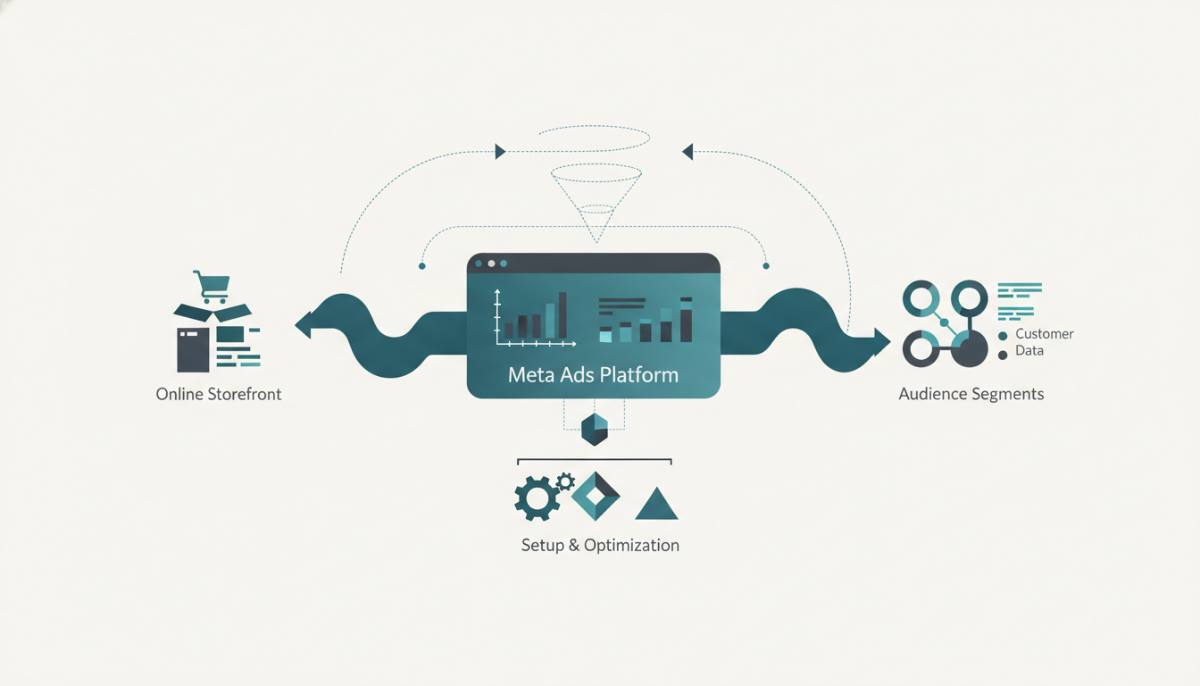
Meta Ads for an online store is targeted advertising delivered across Facebook and Instagram, managed through Meta Ads Manager. It uses your website's Facebook Pixel to track user actions-like purchases, add-to-cart clicks, or page views-and supports dynamic product ads by syncing with a catalog hosted in Commerce Manager. This setup allows ads to update automatically when inventory changes, prices shift, or items go out of stock. Ads appear in multiple placements: feed posts, Stories, Reels, Marketplace, and the desktop right-hand column. Unlike broad awareness campaigns, e-commerce Meta Ads rely on conversion-optimized delivery, audience segmentation based on behavior (e.g., cart abandoners), and pixel-based attribution. In Ukraine, Poland, and Germany, businesses use this system to reach users who have previously interacted with their site or matched demographic and interest signals. No separate "Instagram Ads" or "Facebook Ads" accounts exist-both are unified under one Meta Ads Manager interface.
Step-by-step Meta Ads setup for e-commerce
To set up Meta Ads for an online store step by step, begin in Meta Business Suite. Create a Business Account if you do not already have one. Next, install the Facebook Pixel: copy the base code from Events Manager and paste it into the <head> section of every page, or use platform-specific tools like Shopify's Facebook Sales Channel or WooCommerce's official Meta extension. After installation, wait up to 24 hours for verification in Events Manager. Then, go to Commerce Manager and upload your product catalog via CSV, API, or direct integration. You must have at least 10 active SKUs with valid titles, descriptions, images, and pricing. Once approved, return to Ads Manager. Select "Conversions" as your campaign objective, choose "Purchase" as the conversion event, and confirm your Pixel and data source. Define your audience-for example, people who visited product pages in the last 30 days but did not buy. Set a daily or lifetime budget, select placements (automatic is recommended for new advertisers), and choose creative formats: single image, video, carousel, or collection. Always append UTM parameters to your destination URLs so traffic sources appear correctly in Google Analytics.
Always test two distinct creatives and two audience segments in your first campaign-even if budgets are small. In Poland and Germany, carousel ads with localized text overlays outperform static images by 18-22% for mid-funnel audiences, per Meta's 2023 EMEA Creative Report Meta Creative Report 2023.
Technical prerequisites across Ukraine, Poland, and Germany
Before launching Meta Ads for an online store, confirm technical readiness. Your website must be live and publicly accessible-not password-protected or in maintenance mode. Domain verification in Meta Business Suite is mandatory and requires DNS TXT record addition or HTML file upload. In Ukraine, many agencies use Cloudflare-managed domains, which may require manual DNS edits; in Poland and Germany, shared hosting providers like STRATO or Hetzner often restrict DNS access, making HTML file verification the faster option. You also need admin-level access to your CMS or website backend. For Shopify stores, the Facebook Sales Channel app handles most setup steps-including Pixel installation and catalog sync-but still requires manual UTM tagging for GA4 reporting. For WooCommerce, use the official Meta for WooCommerce plugin (v7.0+), which supports Enhanced Conversions and server-side event forwarding. All setups must comply with GDPR in Germany and Poland, and Ukraine's Law No. 2297-VIII on personal data protection. That means adding a cookie consent banner that pauses Pixel firing until consent is granted. Meta does not auto-enforce this-you must configure it.
Budgeting, bidding, and performance tracking
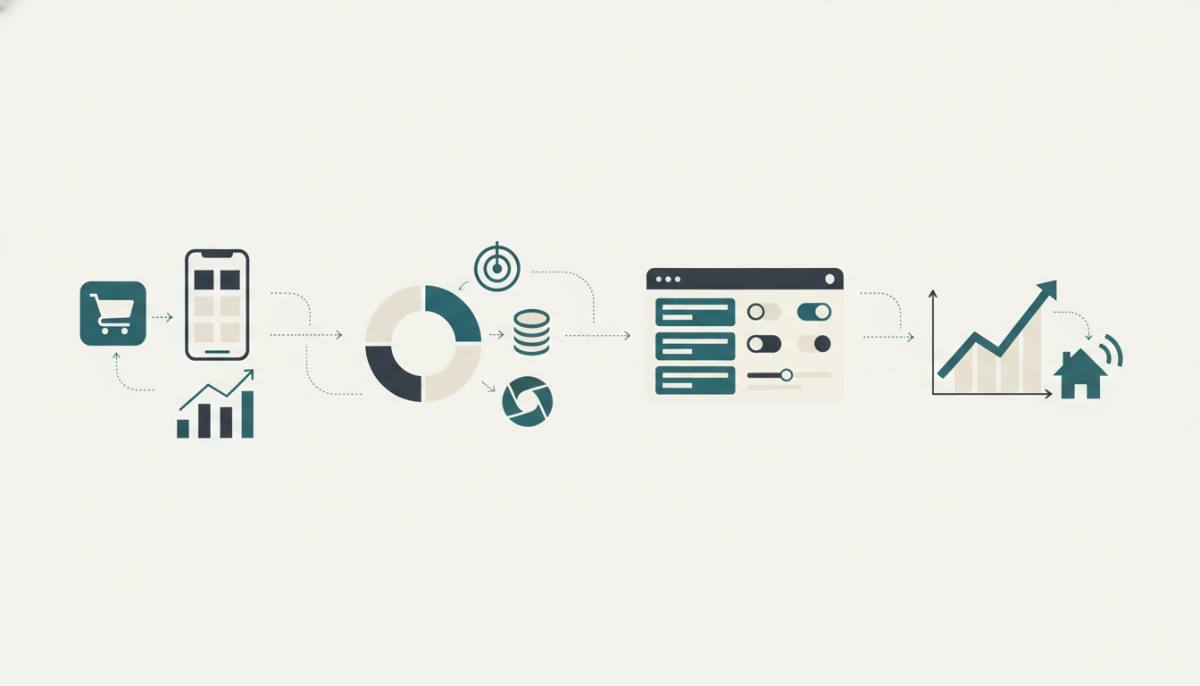
Meta Ads setup for e-commerce includes configuring bidding strategies aligned with your funnel stage. For launch campaigns, use "Cost per Acquisition (CPA)" bidding with a target set to your average order value minus acceptable acquisition cost. In Ukraine, typical CPA targets range from €8-€15 for fashion and electronics; in Poland and Germany, €18-€32 is common for similar verticals. Avoid "Lowest Cost" bidding until you have at least 50 conversions per week-otherwise, Meta cannot optimize effectively. Budget pacing should be daily for testing, then lifetime for scaled campaigns once results stabilize. Track performance using three core reports: the Ads Manager dashboard for CTR and ROAS, Events Manager for pixel health and event duplication, and Google Analytics 4 for assisted conversions and cross-channel paths. Use UTM parameters consistently: utm_source=facebook&utm_medium=cpc&utm_campaign=spring_sale_de for German campaigns, for example. Do not rely solely on Meta's reported ROAS-reconcile with your store's actual revenue and refund data. A mismatch of more than 12% between Meta-reported purchases and Shopify orders usually indicates duplicate event firing or missing value parameters.
| Setting | Recommended for Ukraine | Recommended for Poland | Recommended for Germany |
|---|---|---|---|
| Primary campaign objective | Conversions | Conversions | Conversions |
| Minimum SKUs for catalog | 10 | 10 | 10 |
| Pixel verification method | HTML file upload | HTML file upload or DNS | DNS TXT record preferred |
| GDPR-compliant consent tool | Cookiebot or Osano | Cookiebot or Usercentrics | Usercentrics or Borlabs Cookie |
Meta Ads vs. Google Shopping for e-commerce
Meta Ads vs. Google Shopping is not a choice between alternatives but a question of funnel alignment. Meta Ads for Shopify and Meta Ads for WooCommerce excel at top- and mid-funnel engagement: building brand recognition, retargeting users who viewed products but didn't buy, and showcasing lifestyle context through Reels or carousels. Google Shopping, by contrast, captures bottom-funnel intent-users typing "buy wireless headphones under €100" into Google Search. Its strength lies in exact-match keyword targeting, structured data compliance, and high click-through rates on commercial queries. In Germany, Google Shopping drives 62% of paid e-commerce traffic for branded terms, while Meta delivers 74% of non-branded social referral revenue for fashion retailers Statista, E-commerce Traffic Sources 2023. Neither replaces the other. Use Google Shopping for immediate transactional demand and Meta Ads for sustained visibility, remarketing, and catalog-based automation. If your store operates in Ukraine, Poland, and Germany, allocate budget proportionally: 40% to Google Shopping for high-intent keywords, 40% to Meta for retargeting and prospecting, and 20% to testing emerging formats like Advantage+ Shopping Campaigns.
Frequently asked questions
What is Meta Ads for an online store?
It's targeted advertising on Facebook and Instagram, managed via Meta Ads Manager, designed to promote online store products using catalogs, the Facebook Pixel, and automated ad sets. It leverages user behavior, interests, and site-based retargeting. A key requirement is installing the Facebook Pixel on your website to track conversions-like purchases or add-to-cart events. Ads can appear in feeds, Stories, Reels, and the desktop right-hand column. Integrating with a product catalog (Catalog) enables automatic ad updates when your inventory changes.
How to set up Meta Ads for an online store step by step?
Create a Business Account in Meta Business Suite, install the Facebook Pixel on your site via code or CMS integration (e.g., WooCommerce or Shopify), upload your product catalog through Commerce Manager, then in Ads Manager create a campaign with the 'Conversions' objective, select the 'Purchase' event, define your audience (e.g., retarget visitors who viewed product pages in the last 30 days), set your budget, and choose formats-image, video, or carousel. Always add UTM parameters for tracking in Google Analytics.
How long does it take to set up Meta Ads for an online store?
Full setup typically takes 2-5 business days-assuming your website is live, you have access to Meta Business Suite, and technical integration is possible. The first 24 hours are needed to install and verify the Pixel (via Events Manager), another 1-2 days to upload and validate your product catalog (minimum 10 active SKUs required), and one more day to build, test, and launch your first campaign-including A/B tests of two creatives and two audiences. You can speed this up using campaign templates or tools like Shopify's Facebook Sales Channel.
Meta Ads vs. Google Shopping: which is better for an online store?
Meta Ads excels at branding, retargeting, and engaging warm audiences, while Google Shopping delivers higher precision for direct search queries like 'buy Nike sneakers'. Meta offers flexible visual storytelling in Reels and Stories, supports dynamic catalog-based ads, and targets users by interests and behaviors-even outside search. Google Shopping demands strict keyword-to-product-title alignment but delivers high CTR on commercial intent queries. For best results, use both: Google Shopping for bottom-of-funnel conversions, Meta Ads for top- and mid-funnel awareness and engagement.
Do I need separate accounts for Facebook and Instagram Ads?
No. Facebook and Instagram share one ad infrastructure. You manage both from Meta Ads Manager and select placements during campaign creation. There is no separate "Instagram Ads account" or standalone interface. Ad creatives, budgets, and reporting are unified. You can exclude Instagram placements if needed-but doing so reduces reach without proven ROI gains in Ukraine, Poland, or Germany.
This guide reflects current Meta platform requirements and regional compliance standards as used by agencies managing e-commerce campaigns across Ukraine, Poland, and Germany. We operate a marketing operations platform focused on campaign consolidation, budget control, and transparent ROI analytics for agencies and store owners-supporting native integrations with Shopify, WooCommerce, and Meta's Commerce Manager. All recommendations align with Meta's documented setup flows and verified technical constraints in these markets.